
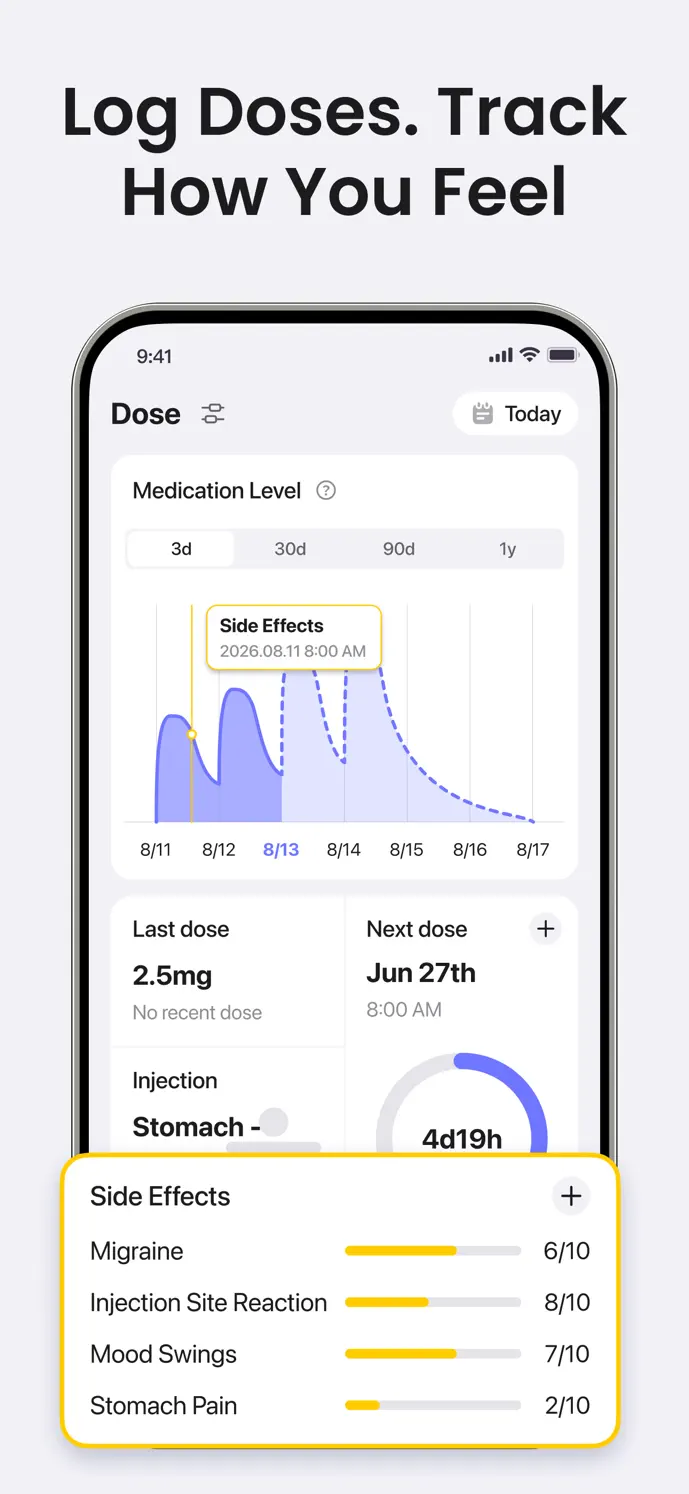
At a glance
- Check dates & units
- Prepare a clear summary
- Check export availability
Start with the original entries
Choose the period you want to understand and review the underlying entries before relying on a chart. A missing entry is not evidence that a dose was skipped or a symptom was absent. Add or correct information only when you know what happened.
- Doses: check the medication, amount, unit, date, time, and recorded site.
- Symptoms: check the date, severity score, and any notes you added.
- Weight: check the measurement date and whether values use pounds or kilograms.
Resolve date and unit surprises
Check your device time zone and the dates displayed in the app, especially after travel or when entering older records. Compare an unexpected total with its source entries. A unit or date error can change the meaning of a trend without reflecting a change in your health.
Prepare a short summary for your appointment
Illustrative summary: “I want to discuss a symptom I recorded on Tuesday evening. I have noted its time and score and the dates of my recent dose records. I am unsure whether I recorded every meal that day.” This example contains no real user data and draws no conclusion about the cause of the symptom.
- Write the period you want to discuss and the questions you want answered.
- For each question, note the dates of the relevant doses, symptoms, meals, or measurements.
- Keep uncertainty visible: an unrecorded event is different from a confirmed absence.
- If you have an export, identify which fields it includes and add missing context separately.
Check the export options in your version
Do not assume every version has a Profile export button. If your app has no export entry, you can review its history and prepare a short written summary or use the blank tracking sheet. Contact hello@metainnovation.site for help accessing your information.
Export requires injection history and covers a period based on those records, without a custom date-range selector. PDF and CSV contain different supported fields. They are not complete account backups and do not include every photo or health record.
Look for an export option in your installed app. Its availability and entry point depend on the released version; contact support if no option is visible.
If export is available, choose PDF for a report or CSV for spreadsheet rows. Access requires an eligible plan and available injection records.
Use the system sharing options to save the generated file, then open it and review its contents before sending it.
Inspect the file and choose who receives it
Open the file and check its dates, units, contents, and any personal details before sharing. Medication-level figures are estimates, not blood-test results. You decide whether to keep the report privately or send it to someone you choose. For a broader data-access request, email hello@metainnovation.site.
A little more clarity
Common questions
Can I export without injection records?
Report export requires injection history and a supported app version with an export option. Contact support for access to other information; do not add a dose that did not happen just to create a report.
Does the report include every photo and health entry?
No. PDF and CSV contain supported report information. Review the file to see what is included; it is not a full account backup.
Does GlowBack automatically send this to my clinician?
The export flow lets you choose how to save or share the file. You select the destination and recipient.
What if I cannot find Export Data in Profile?
An export entry is not present in every version. Review the available history, use the blank tracking sheet for a written summary, or contact support about your version and data access.