
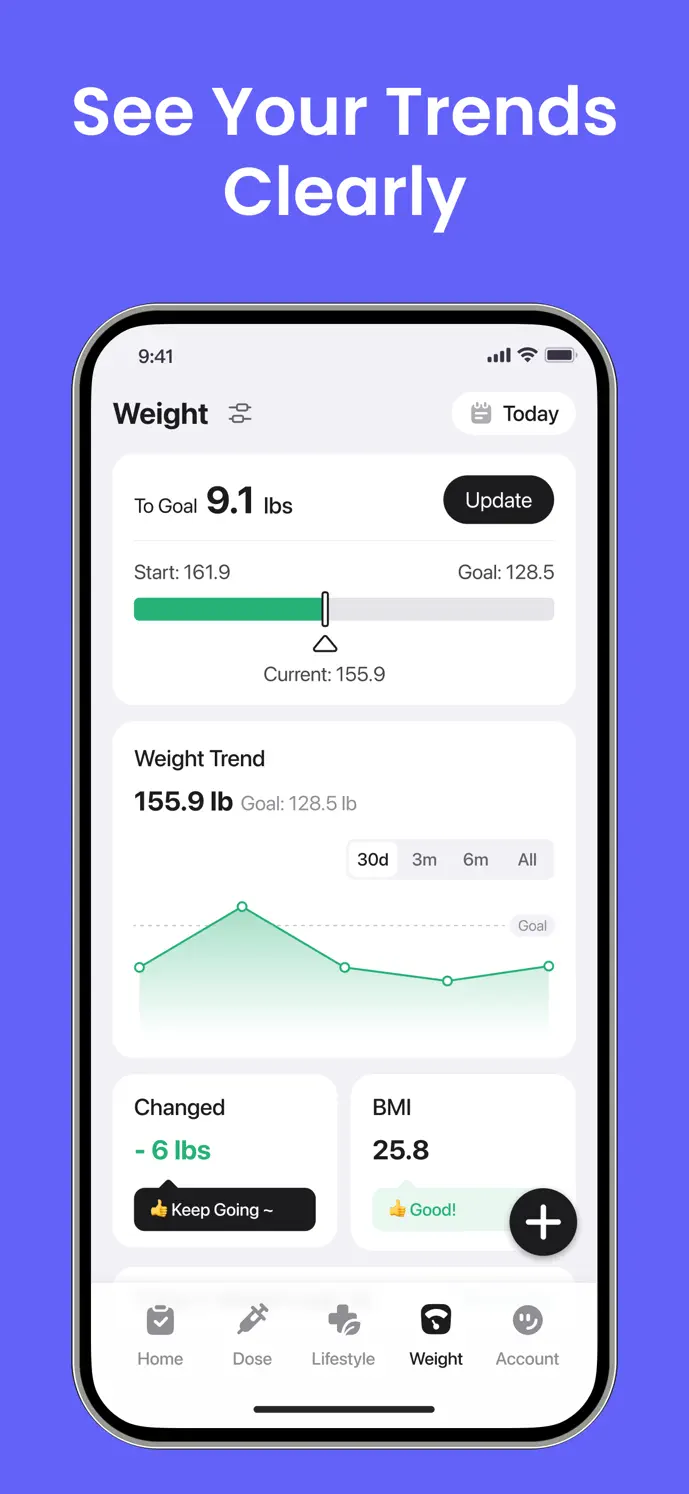
At a glance
- Dated weight records
- Selectable trend ranges
- Photo timeline & album
Record a weight entry with the right context
Open weight logging in GlowBack.
Enter the weight and confirm your preferred unit.
Set the date and time of the measurement, including when adding an older record.
Optionally attach a progress photo, then save the entry.
Review the saved record and correct it if the value, unit, or date was wrong.
Choose the time range you want to review
The weight chart offers 30-day, 3-month, 6-month, and all-time views. A longer range helps you look beyond a single entry while keeping the underlying records available.
The 30-day weight trend is available without a paid plan in the current product. The longer ranges require an eligible plan. Check your app for current access, because features and offers may change with version or platform.
Build a dated photo journey
Body Journey organizes progress photos in Timeline and Album views. Dated entries help you find an earlier photo and choose images to compare instead of searching through unrelated pictures.
Use a similar viewpoint and lighting if you want a more consistent visual comparison. Photos show appearance at a moment in time; they do not measure health or establish what caused a change. Example images in app previews are not a promise of results.
Connect supported health records if you choose
On iOS, the Health Data option in Profile can import supported Apple Health records, including weight. Import requires an eligible plan, device support, and the permissions you grant. The currently checked interface does not expose the same import entry on Android; check your released version before relying on it.
When an expected entry is missing, check the source health app, the selected data permissions, and the import settings before adding it again manually. Available historical data and platform behavior can differ.
Understand photo storage and sharing
Adding a progress photo uses an upload service and requires a connection. Account synchronization and photo handling depend on the features you use; do not assume all photos remain only on the device.
Body Journey and extended trend views require an eligible plan. Before exporting or sharing a comparison, review the selected images and any weight or date information it includes. See the privacy policy for data handling and contact support with privacy requests.
A little more clarity
Common questions
Can I enter a previous weight?
Yes. Set the measurement’s date and time when creating the entry. Check the unit as well so the record is placed correctly in your history.
Do I need a photo for every weight entry?
No. A photo is optional when logging weight. Body Journey also provides a dedicated photo workflow on eligible plans.
Does GlowBack guarantee a weight-loss result?
No. GlowBack records information you provide and displays trends. It does not guarantee a result or replace individualized healthcare advice.